
Frequently Asked Questions: Member Portal
Getting Started
How do I download the Saskatchewan Blue Cross Member Mobile App from my app store?
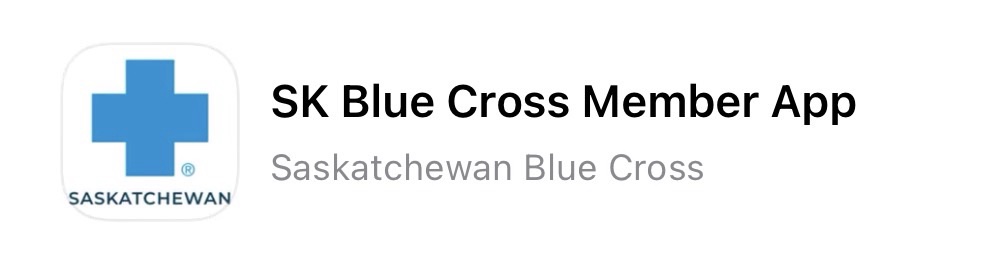
Within the app store, search for SK Blue Cross Member App. Our app logo depicts a blue cross on a white background with the word Personal underneath the cross. Select Install and the app will be downloaded to your device.
Who can register for an account?
Only the main policyholder can register for an account on the member portal & mobile app. Family members or other policy members must use the same account.
How do I turn off the fingerprint or face ID option?
From the menu select the Settings & Security option located under preferences to access the app settings. In the Settings & Security menu, select Manage Touch or Face ID to toggle the feature on and off.
I have two Personal Health Plans. Do I need to register twice?
No. All Personal Health Plans for which you are the policyholder for will be displayed after your initial registration.
What amount should I use to fill in my last payment?
Step two of registering for the Member Portal/Mobile App requests your 'last payment' amount as a verification of your identity. This refers to the most recent payment made to Saskatchewan Blue Cross, which may or may not be your annual or monthly premium amount. Refer to your bank statements for the most recent payment made to Saskatchewan Blue Cross. If you haven't made a payment yet, enter $0.00 to proceed.
I received my registration confirmation email, which button do I select to open the mobile app?
Once you receive your registration confirmation email, the email will include an Open App button and a link below it to access the member portal. If you open the email on your phone and select the button it will open the member portal using the member app. If you select the internet link below the button, it will open the member portal in a web browser.
How many numbers are needed in the Policyholder ID Number Field?
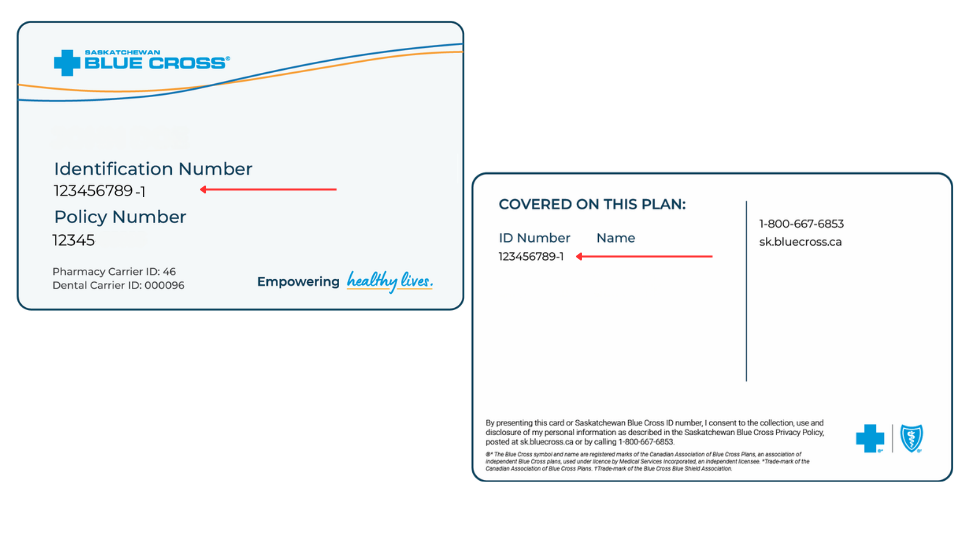
In the Policyholder ID Number field, please enter the digits (between 6 to 8) as they appear on your member card beside the policyholder's name.
Guides and how-to's
Where do I start?
Check out our handy User Guide for the member portal! With the member portal, you can manage your plan anywhere, any time. Access plan information, check coverage amounts, submit claims, and so much more! Your member portal and mobile app makes managing your plan a breeze.
How do I register my account for the new member portal?
How do I register more than one Saskatchewan Blue Cross plan with the new member portal?
How do I find my Individual Assistance Program/Virtual Care access code?
How do I submit a claim on the member portal?
How can I check my coverage on the member portal?
How can I view my policy booklet on the member portal?
How do I download my claims statement on the member portal?
How do I download my premium receipts?
Home Page
A portion of my claim was paid by another insurance carrier. How can I see what portion was covered by them?
To see what portion of a claim was paid by another insurance provider, please refer to your Explanation of Benefits statement, which will be sent in the mail. Your Explanation of Benefits statement is not available online.
Is there a way to filter my claims?
Currently, claims can only be viewed in order of most recent to oldest. There are no other filters to view your claims.
My Banking
Can my monthly premium payments come out of a different account than my direct deposit reimbursements?
Yes, members can have different bank accounts listed for their direct deposit and monthly premium payments.
If my monthly premiums are to be coming out of my account soon, can I still change my monthly payment account?
It takes a few business days for your new account information to take effect in our system. If your premiums are scheduled to come out of your account within that time frame, the payment may come out of your old account until the new information has been processed.
Will I be notified once my monthly payment/direct deposit account information has been set up?
Once your banking information has been added to your plan, the last four digits of the account will be displayed in the My Banking section for confirmation and an Active icon will appear in the corresponding payment section.
Do you need me to send my banking information or void check for the monthly withdrawals/deposits if I set it up through the portal?
No, the banking information that is received through the member portal is sufficient documentation.
Can I make a partial payment through the portal instead of the full renewal amount?
Renewal payments must be paid in full. Under the Premium Payments section of My Banking, you can choose to:
- Pay annually via credit card, with one lump sum payment, or
- Make smaller payments by setting up monthly withdrawals direct from your bank account
Where can I find my bank account information?
If there is a small, green ‘Active’ tag beside the Direct Deposit option within your member portal, your banking information is already active and does not need to be added. You only need to fill this information out if your banking information has changed.
If you have not yet signed up for direct deposit, please follow these steps:
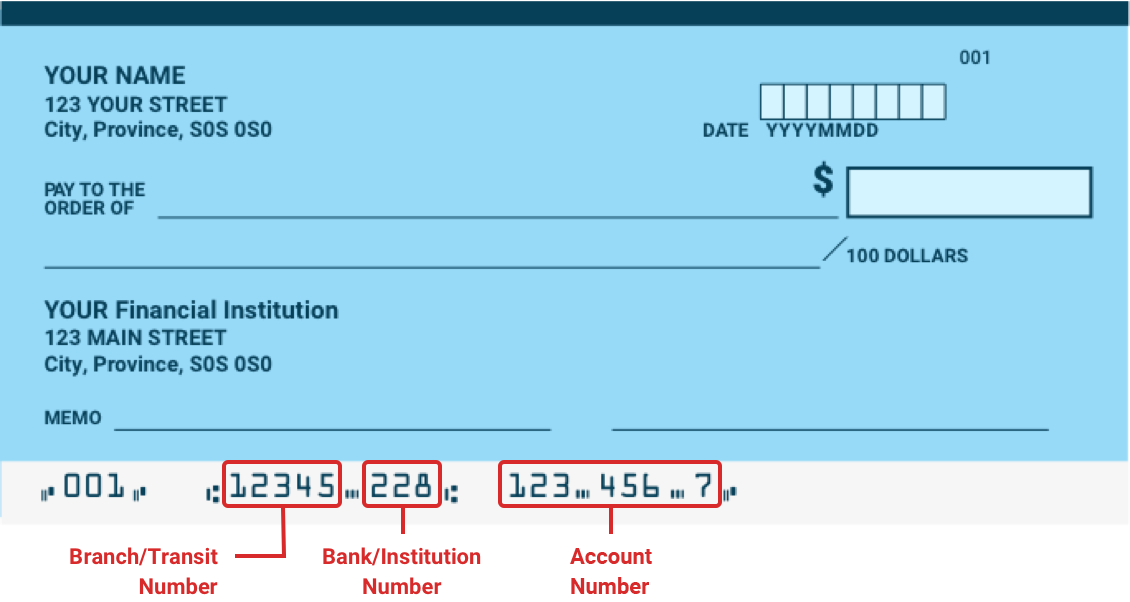
All of the required bank account information can be found on a cheque or through your online banking account.
On a Cheque:
The sample cheque below shows where you can locate all of the required banking details.
Through Your Online Banking Account:
Login to your online banking account and select the account you'd like to use for your monthly premium payments. From there you will be able to view or print a pre-authorized payment form that will include all your necessary banking details.
My Documents
If I send a document by mail/fax/in person, will it show in my Document History on the portal?
Only documents that are received through the member portal will appear in the Document History section of the member portal.
The documents I sent did not appear in the Document History section. How do I view what I sent?
Documents that are sent in through the member portal will appear in your Document History immediately. If the document does not appear, try refreshing the page.
If I have more than one plan on my portal, do I need to specify which plan the submitted document is related to?
When a document is received through the member portal, our team will apply the document to each of the plans listed in the member’s name. If the document applies to only one of the plans, it is recommended that the member specify which plan the document relates to in the Add An Optional Message section of the submission page.
I was asked to send the document to the attention of a specific person, can I still submit it through the portal?
If a document needs to be directed to a specific individual, when submitting the document in the portal, indicate the corresponding individual in the Add An Optional Message section of the submission page.
Can I submit more than one document type at a time?
Yes, more than one document type can be included in a submission.
My Profile
Can I add or remove family members through the member portal & mobile app?
To add or remove family members to your plan, please contact our Member Experience team at 1-800-USEBLUE®.
Can I add more than one email address?
No, only one email address can be added to the Member Portal & Mobile App to receive communications from Saskatchewan Blue Cross.
Can I add more than one cell phone number to my plan?
The My Profile page has room for up to 3 phone numbers to be recorded.
Can I change my family member’s information?
A family member’s Saskatchewan Health Card number can be adjusted through the My Profile section of the Member Portal. To change any other information of anyone other than the policyholder, please contact our Member Experience team at 1-800-USEBLUE®.
Can I update my personal information through the Member Portal & Mobile App?
Yes, you can edit your Saskatchewan Health Card number, mailing address, phone number and email address under the My Profile page.
Preferences: Settings & Security
How long will it take for my changes to take effect after changing my communication preferences (emails/text messages)?
Changes to your communication preferences can take up to 10 days to take effect.
Are there any specific criteria needed to change my password?
To create a strong password, please ensure your password contains a minimum of 8 characters; a mix of upper case and lowercase letters; numbers, symbols and spaces; and does not contain ties to your personal information.